Most messaging apps on Android do not offer an “underline” button in their toolbar. Bold, italic, and strikethrough options exist in WhatsApp or Google Messages, but underlining remains the major absence among native formatting options. This absence drives many users towards workarounds, some of which actually work while others are myths.
False Underlining on Android: What SMS Apps Don’t Allow
A quick search returns dozens of tutorials promising to underline text in a regular SMS. The technical reality is more restrictive. The default SMS app on Android does not support any formatting: no bold, no italic, no underlining. The SMS protocol transmits plain text, without style metadata.
Google Messages, which is gradually replacing SMS with the RCS protocol, is starting to integrate formatting options. However, these options are currently limited to bold and italic through a long press on the selected text. Underlining is not included.
Guides explaining how to underline a word in an SMS on Android generally distinguish between native functions and workarounds. This distinction is the starting point to avoid wasting time with methods that produce no visible results for the recipient.
Native Formatting on WhatsApp and Google Messages: Bold, Italic, Strikethrough
WhatsApp remains the Android app where text formatting is most accessible. Four styles are natively available, each activated by special characters surrounding the word or phrase:
- Bold: place the text between asterisks (*word*). The result is displayed immediately in the input area before sending.
- Italic: enclose the text with underscores (_word_). Useful for subtle emphasis, often confused with underlining.
- Strikethrough: use tildes (~word~). This option is mainly used to indicate a correction or a change of mind.
- Monospace: three backticks on each side (“`word“`). Less common, but available.
Underlining is not on this list. WhatsApp has never integrated this formatting, despite repeated user requests. The alternative method involves selecting the text by long pressing, then accessing the context menu to choose the desired style from those that exist.
In Google Messages, formatting via RCS works similarly with a long press on the word. The options offered depend on the version of the app and whether the recipient also uses RCS. If the message is sent as a regular SMS, any formatting disappears.
Unicode Generators and Third-Party Apps: Real Workarounds and Limitations
Since native underlining does not exist, third-party tools offer to simulate it. The principle relies on special Unicode characters that add a line under each letter. These combining Unicode characters produce a visual underline that displays on most screens, including for the recipient.
Several websites, sometimes called “message formatters” or text generators, allow you to type a word, select the underlined style, and then copy the result to the clipboard. You can then paste it into any messaging app.
What Works with Unicode Characters
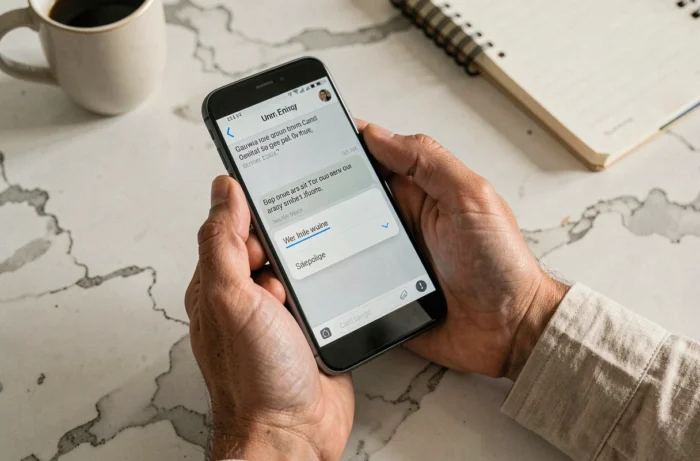
The underlined text via Unicode displays correctly in most cases: WhatsApp, Telegram, Google Messages, and even regular SMS if the recipient’s phone supports UTF-8 encoding. The rendering entirely depends on the font of the receiving phone, meaning the display can vary from one device to another.
What Causes Problems
The combining characters make the text heavier. A six-letter word underlined via Unicode actually contains twelve characters (the letter plus the combining character for each). On a regular SMS limited in character count, this reduces the space available for the rest of the message.
Some custom fonts installed on Android phones do not render these characters correctly. The recipient then sees squares or incomprehensible symbols instead of the expected underline. Feedback varies on this point depending on brands and Android versions.
Which Method to Choose to Highlight a Word in an Android SMS
The choice depends on the app used and the recipient. Here are the three approaches ranked by reliability:
- Use native bold or italic (WhatsApp, Telegram): the most reliable and fastest method, with guaranteed rendering for the recipient using the same app.
- Use a Unicode generator to simulate underlining: works in most situations, but with a risk of degraded display on some devices.
- Capitalize the word: no technical dependency, understandable by all, but perceived as aggressive in some contexts.
Third-party apps dedicated to text formatting (available on the Play Store) automate the generation of Unicode characters. They do not add any functionality that web generators do not already offer, but they simplify the process by avoiding the need to open a browser.

No Android app currently allows native underlining in an SMS. The RCS protocol may one day integrate this option, as it has for bold and italic. In the meantime, combining Unicode characters remain the only way to produce a visible underline, with the display limitations that this entails. For guaranteed highlighting without surprises, bold on WhatsApp or Telegram remains the safest choice.